On this page
- Prerequisites
- Create a GitLab Personal Access Token
- Webhook Configuration using the CLI
- Webhook Configuration (Manual)
- Create the Secret
- Create the Repository CR
- Notes
- Working with Forked Repositories
- Token Scoping for Fork-based Workflows
- Status Reporting Fallback
- Troubleshooting Fork Merge Requests
- Why does my fork merge request show comments instead of status checks?
- How can I get status checks instead of comments?
- Option 1: Bot Account (Recommended for Production)
- Option 2: Group-scoped Token
- Option 3: Accept Comment-based Status (Default)
- Can I disable status comments entirely?
- Can I use forks for development within a single repository?
- Where can I learn more about the fallback mechanism?
- Add Webhook Secret
- Update Token
- Update using the CLI
- Update using kubectl
- Automatic Token Rotation
- Enabling Automatic Rotation
- How It Works
- Introspection Caching
- Monitoring Rotation
- Recovering from an Expired or Revoked Token
- Requirements
GitLab
This page covers how to configure Pipelines-as-Code with GitLab through a webhook. Use this method to run Tekton pipelines triggered by merge requests and push events on GitLab repositories, including self-managed GitLab instances.
Prerequisites
- A running Pipelines-as-Code installation
- A GitLab personal access token with
apiscope (see below) - The public URL of your Pipelines-as-Code controller route or ingress endpoint
Create a GitLab Personal Access Token
Follow this guide to generate a personal token as the manager of the organization or the project:
https://docs.gitlab.com/ee/user/profile/personal_access_tokens.html
api access to the forked repository from where
the MR originates, a project-scoped token will fail for fork-based workflows. Pipelines-as-Code falls back to showing the pipeline status as a comment
on the Merge Request.Store the generated token in a safe place, or you will have to recreate it.
api scope (or self_rotate on newer GitLab versions).Webhook Configuration using the CLI
Use the tkn pac create repo command to
configure a webhook and create the Repository CR in one step.
You need a personal access token created with the api scope. tkn pac uses this token to configure the webhook and stores it in a secret in the cluster, which the Pipelines-as-Code controller uses for accessing the repository.
Below is the sample format for tkn pac create repo:
$ tkn pac create repo

? Enter the Git repository url (default: https://gitlab.com/repositories/project):
? Please enter the namespace where the pipeline should run (default: project-pipelines):
! Namespace project-pipelines is not found
? Would you like me to create the namespace project-pipelines? Yes
✓ Repository repositories-project has been created in project-pipelines namespace
✓ Setting up GitLab Webhook for Repository https://gitlab.com/repositories/project
? Please enter the project ID for the repository you want to be configured,
  project ID refers to an unique ID (e.g. 34405323) shown at the top of your GitLab project : 17103
👀 I have detected a controller url: https://pipelines-as-code-controller-openshift-pipelines.apps.awscl2.aws.ospqa.com
? Do you want me to use it? Yes
? Please enter the secret to configure the webhook for payload validation (default: lFjHIEcaGFlF):  lFjHIEcaGFlF
ℹ️ You now need to create a GitLab personal access token with `api` scope
ℹ️ Go to this URL to generate one https://gitlab.com/-/profile/personal_access_tokens, see https://is.gd/rOEo9B for documentation
? Please enter the GitLab access token:  **************************
? Please enter your GitLab API URL:  https://gitlab.com
✓ Webhook has been created on your repository
🔑 Webhook Secret repositories-project has been created in the project-pipelines namespace.
🔑 Repository CR repositories-project has been updated with webhook secret in the project-pipelines namespace
ℹ Directory .tekton has been created.
✓ A basic template has been created in /home/Go/src/gitlab.com/repositories/project/.tekton/pipelinerun.yaml, feel free to customize it.
ℹ You can test your pipeline by pushing the generated template to your git repository
Webhook Configuration (Manual)
If you prefer to configure the webhook yourself, follow these steps.
From your GitLab project, go to Settings –> Webhooks.
Set the URL to the Pipelines-as-Code controller public URL. On OpenShift, get the public URL of the Pipelines-as-Code controller like this:
echo https://$(oc get route -n pipelines-as-code pipelines-as-code-controller -o jsonpath='{.spec.host}')Add a secret or generate a random one with this command:
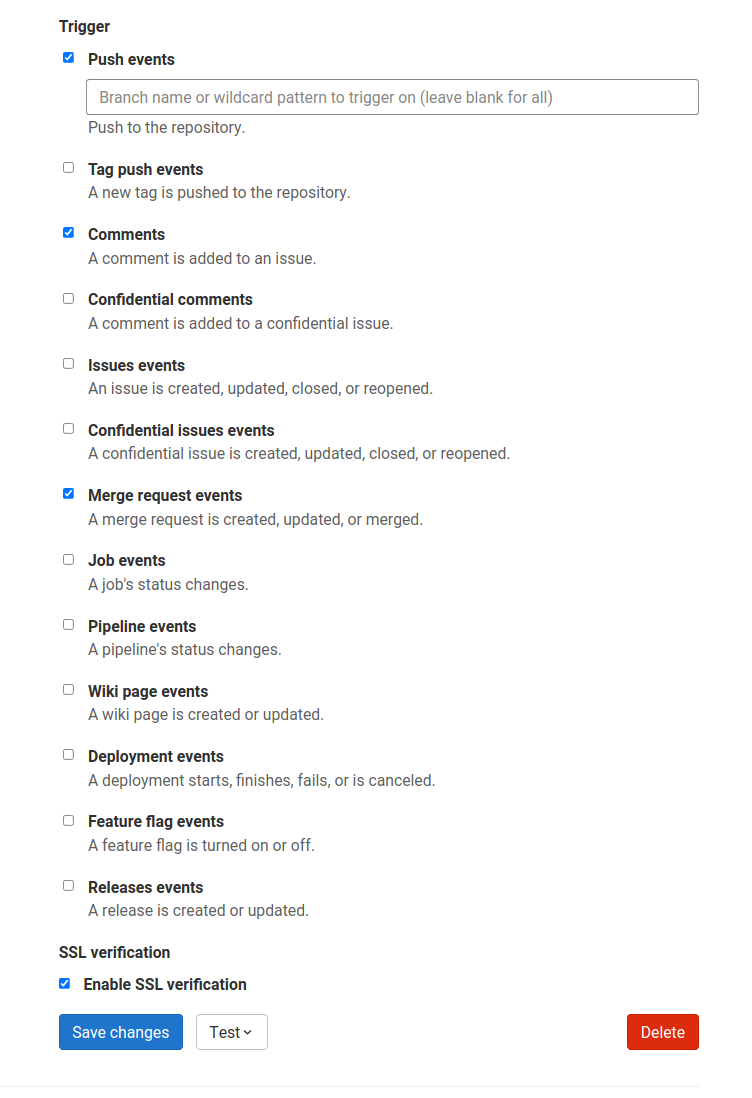
head -c 30 /dev/random | base64Refer to this screenshot on how to configure the Webhook.
The individual events to select are:
- Merge request Events
- Push Events
- Comments
- Tag push events
Click on Add webhook
Create the Secret
Create a Kubernetes secret containing your personal token and the webhook secret in the target-namespace (the namespace where your pipeline CI runs):
kubectl -n target-namespace create secret generic gitlab-webhook-config \
  --from-literal provider.token="TOKEN_AS_GENERATED_PREVIOUSLY" \
  --from-literal webhook.secret="SECRET_AS_SET_IN_WEBHOOK_CONFIGURATION"
Create the Repository CR
Create a Repository CR with the secret field referencing it:
---
apiVersion: "pipelinesascode.tekton.dev/v1alpha1"
kind: Repository
metadata:
  name: my-repo
  namespace: target-namespace
spec:
  url: "https://gitlab.com/group/project"
  git_provider:
    # url: "https://gitlab.example.com/ # Set this if you are using a private GitLab instance
    type: "gitlab"
    secret:
      name: "gitlab-webhook-config"
      # Set this if you have a different key in your secret
      # key: "provider.token"
    webhook_secret:
      name: "gitlab-webhook-config"
      # Set this if you have a different key in your secret
      # key: "webhook.secret"
Notes
Pipelines-as-Code does not automatically detect private GitLab instances, so you must specify the API URL under
spec.git_provider.url.The
git_provider.secretkey cannot reference a secret in another namespace. Pipelines-as-Code always assumes that it is in the same namespace where the Repository CR has been created.
Working with Forked Repositories
When your token scope affects how Pipelines-as-Code can report pipeline status on merge requests from forks, the following considerations apply.
Token Scoping for Fork-based Workflows
Project-scoped tokens: Limited to the upstream repository, cannot access forks. Status reporting falls back to merge request comments. This is the most secure option but has limited functionality.
Organization/Group-scoped tokens: Can access multiple repositories including forks. Enables status checks on both the fork and upstream. Requires broader permissions.
Bot account tokens: Recommended for production (see troubleshooting section below). Provides minimal required permissions and a clear audit trail.
Status Reporting Fallback
Pipelines-as-Code supports merge requests from forked repositories with an automatic fallback mechanism for status reporting:
Primary: Pipelines-as-Code attempts to set commit status on the fork (source project). If successful, the status appears in both the fork and upstream UI. This requires a token with write access to the fork repository.
Fallback: Pipelines-as-Code attempts to set commit status on the upstream (target project). The status appears in the upstream repository UI. This may fail if the upstream has no active CI pipeline for the commit.
Final Fallback: Pipelines-as-Code posts the status as a merge request comment. This always works as long as the token has merge request write permissions. The comment provides the same information as status checks in a different format.
This design ensures status reporting works even with restricted token permissions.
Visual Example:
Status checks appear in GitLab’s “Pipelines” tab:
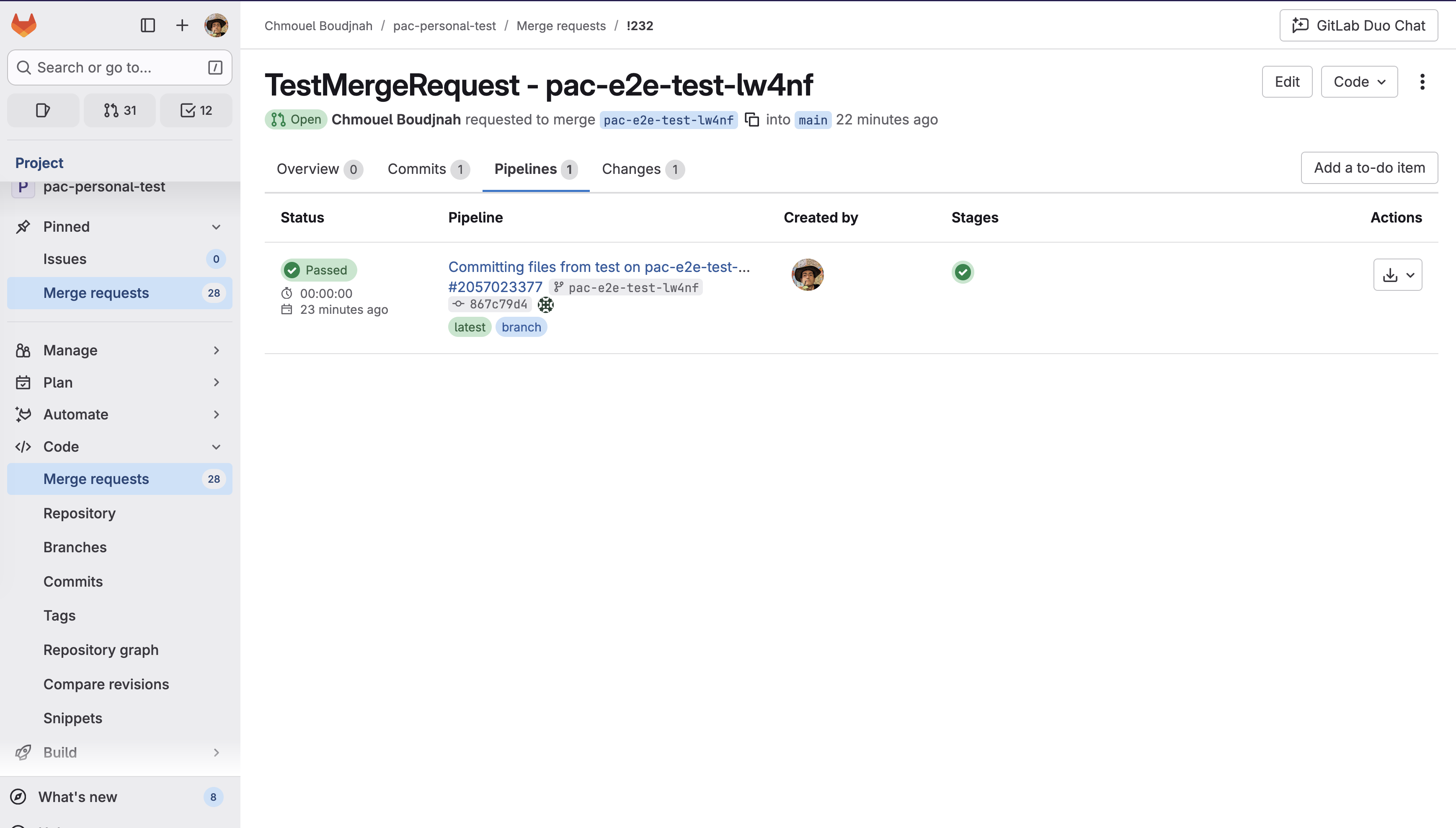
When status check reporting is unavailable, comments provide the same information (Comments show pipeline status, duration, and results).
Troubleshooting Fork Merge Requests
Why does my fork merge request show comments instead of status checks?
Symptom: Pipeline status appears as merge request comments, not in the “Pipelines” tab.
Root Cause: The GitLab token configured in your Repository CR lacks write access to the fork repository.
What Happened:
- PaC attempted to set status on fork → Failed (insufficient permissions)
- PaC attempted to set status on upstream → Failed (no CI pipeline on upstream for this commit)
- PaC fell back to MR comment → Succeeded ✓
This is working as designed. Comments provide the same pipeline information as status checks, just in a different format.
How can I get status checks instead of comments?
Choose the option that fits your security model:
Option 1: Bot Account (Recommended for Production)
Create a dedicated service account with minimal permissions:
- Create GitLab bot/service account
- Grant permissions:
- Read access: upstream and fork repositories
- Write access: fork repository (for status updates)
- CI pipeline access: upstream repository
- Generate personal access token with
apiscope for bot account - Use bot token in Repository CR secret
Advantages:
- Minimal permissions principle
- Clear audit trail (pipeline actions attributed to bot)
- No personal token rotation when team members change
Trade-off: Requires GitLab account administration
Option 2: Group-scoped Token
Use a Group Access Token with api scope. This token will have access to all repositories within the group:
Advantages:
- Simple to set up
- Works for both fork and upstream
Trade-offs:
- Broader permission scope
- Personal token tied to individual user account
Option 3: Accept Comment-based Status (Default)
Continue using project-scoped token with comment fallback:
Advantages:
- Most restrictive permissions
- No additional configuration needed
Trade-off: Status appears as comments instead of checks
Can I disable status comments entirely?
Yes. If you prefer not to see PipelineRun status comments on your merge requests, you can disable
them by updating your Repository CR. This setting only applies to comments about a PipelineRun’s
status, such as “started” or “succeeded”; Pipelines-as-Code still posts comments for errors
validating PipelineRuns in the .tekton/ directory.
spec:
  settings:
    gitlab:
      comment_strategy: "disable_all"
See Repository CR documentation for details.
Important: Even with correct token permissions, upstream status updates may fail if GitLab doesn’t create a pipeline entry for that commit in the upstream repository. GitLab only creates pipeline entries when CI actually runs in that project.
Can I use forks for development within a single repository?
Yes. The restrictions only apply to cross-repository merge requests (fork to upstream).
If you are working within a single repository (even a fork used as your primary repo):
- Token needs
apiscope for that repository - Status checks appear normally
- No permission issues expected
Where can I learn more about the fallback mechanism?
See the detailed technical explanation and visual example in: Repository CR - GitLab comment strategy
Add Webhook Secret
If the webhook secret for an existing Repository CR has been deleted, or you want to add a new webhook to your project settings, use the tkn pac webhook add command. This command adds a webhook to the project repository settings and updates the webhook.secret key in the existing secret without modifying the Repository CR.
Below is the sample format for tkn pac webhook add:
$ tkn pac webhook add -n project-pipelines

✓ Setting up GitLab Webhook for Repository https://gitlab.com/repositories/project
? Please enter the project ID for the repository you want to be configured,
  project ID refers to an unique ID (e.g. 34405323) shown at the top of your GitLab project : 17103
👀 I have detected a controller url: https://pipelines-as-code-controller-openshift-pipelines.apps.awscl2.aws.ospqa.com
? Do you want me to use it? Yes
? Please enter the secret to configure the webhook for payload validation (default: TXArbGNDHTXU):  TXArbGNDHTXU
✓ Webhook has been created on your repository
🔑 Secret repositories-project has been updated with webhook secret in the project-pipelines namespace.Repository exists in a namespace other than the default namespace, use tkn pac webhook add [-n namespace].
In the above example, the Repository exists in the project-pipelines namespace rather than the default namespace, so the webhook was added in the project-pipelines namespace.Update Token
There are two ways to update the provider token for an existing Repository CR.
Update using the CLI
Use the tkn pac webhook update-token command to
update the provider token for an existing Repository CR.
Below is the sample format for tkn pac webhook update-token:
$ tkn pac webhook update-token -n repo-pipelines

? Please enter your personal access token:  **************************
🔑 Secret repositories-project has been updated with new personal access token in the project-pipelines namespace.Repository exists in a namespace other than the default namespace, use tkn pac webhook update-token [-n namespace].
In the above example, the Repository exists in the project-pipelines namespace rather than the default namespace, so the webhook token was updated in the project-pipelines namespace.Update using kubectl
When you have regenerated a new token, you must update it in the cluster. You can find the secret name in the Repository CR:
spec:
  git_provider:
    # url: "https://gitlab.example.com/ # Set this if you are using a private GitLab instance
    secret:
      name: "gitlab-webhook-config"
Replace $NEW_TOKEN and $target_namespace with your values:
kubectl -n $target_namespace patch secret gitlab-webhook-config -p "{\"data\": {\"provider.token\": \"$(echo -n $NEW_TOKEN|base64 -w0)\"}}"Automatic Token Rotation
Pipelines-as-Code automatically rotates GitLab access tokens before they expire. On each webhook event, it checks the token’s expiry date and rotates it when it is within 7 days of expiration. The new token (valid for 30 days) is written back to the Kubernetes Secret configured directly on the Repository CR.
This works for Personal Access Tokens and Project Access Tokens. The token must have the api scope (or the self_rotate scope available in newer GitLab versions).
Automatic rotation is disabled by default. If the token does not have the required scope for self-rotation, the rotation is silently skipped and webhook processing continues normally.
In the future, this behavior may become enabled by default.
Automatic rotation does not run for git_provider.secret values inherited from the global Repository. Global Repository secrets are shared configuration and must be rotated manually, for example by updating the global secret with kubectl or the process you use to manage controller-wide credentials.
Enabling Automatic Rotation
To enable automatic token rotation for a repository, set token_auto_rotation to true:
spec:
  settings:
    gitlab:
      token_auto_rotation: true
To enable it by default for repositories that do not set a local value, set it on the global Repository CR.
When both global and repository settings are present, the repository-level value takes precedence.
How It Works
- When Pipelines-as-Code sets up the GitLab client (on webhook events and watcher reconciliation loops), it calls the GitLab token self-introspection API to check the token’s expiry. The result is cached per repository (for up to 1 hour, invalidated if the token changes), so repeated events don’t each trigger an API call.
- If the token expires within 7 days, Pipelines-as-Code first verifies (with a server-side dry-run update) that it can write the Kubernetes Secret referenced in the Repository CR; if not, the rotation is skipped and the old token stays valid. It then calls the self-rotation API to rotate the token.
- The old token is revoked and a new token (valid for 30 days) is returned.
- The new token is written back to the Kubernetes Secret referenced directly in the Repository CR.
- A Kubernetes event (
GitLabTokenRotated) is emitted on the Repository CR.
Token rotation is atomic: the old token is revoked the moment the new one is created. If the Kubernetes Secret update fails after rotation, the old token is already revoked and you must create a new token and update the Secret by hand (see Recovering from an expired or revoked token). This is logged as a CRITICAL error and the webhook event is rejected.
Introspection Caching
To keep GitLab API consumption low, the result of the token introspection call is cached in memory per repository (keyed by the Repository CR’s namespace/name):
- A cached result is reused for up to 1 hour, as long as the token’s known expiry stays outside the 7-day rotation window. Within that hour, webhook events and watcher reconciliation loops do not trigger additional introspection calls.
- The cache is bound to the token value itself: if you update the Secret
manually (for example with
tkn pac webhook update-tokenorkubectl patch), the cached entry no longer matches and the next event re-introspects the new token immediately. - After a successful rotation, the cache is refreshed with the new token and its new expiry.
- The cache is per process and not persisted: the controller and the watcher each keep their own, and a pod restart starts with an empty cache. This only means at most one extra introspection call per component after a restart.
Monitoring Rotation
Each successful rotation emits a GitLabTokenRotated Kubernetes event on the Repository CR, including the new expiry date:
kubectl -n <namespace> get events --field-selector reason=GitLabTokenRotatedRotation failures other than the critical Secret-update case do not block webhook processing; they are only logged by the controller. If you suspect tokens are not being rotated, check the controller logs:
kubectl -n pipelines-as-code logs deployment/pipelines-as-code-controller | grep -i "token auto-rotation"Recovering from an Expired or Revoked Token
Rotation only works while the token is still valid. Once a token has expired, GitLab rejects the introspection call and Pipelines-as-Code cannot renew it. This typically happens on dormant repositories that received no webhook event during the rotation window. The same applies when rotation succeeded on the GitLab side but the Secret update failed: the old token is revoked and the new one was lost.
In both cases, create a new token in GitLab and update the Secret as described
in Update Token, using either tkn pac webhook update-token
or kubectl patch.
Requirements
- The token must have
apiorself_rotatescope. - The token must have an expiration date. Tokens created without one are never rotated.
- The token secret must be configured directly on the Repository CR. Tokens inherited from the global Repository are not auto-rotated.
- The repository must receive at least one webhook event within the 7-day rotation window. Dormant repositories that receive no events will not have their tokens rotated and the tokens will eventually expire. For low-traffic repositories, create the token with a longer expiry, or disable auto-rotation and manage the token manually.
- The Pipelines-as-Code controller needs
updatepermission onsecretsresources. This is included in the default RBAC configuration (pipeline-as-code-controller-clusterrole). If you use custom RBAC, ensure the controller’s ClusterRole includesupdateon secrets. - Group Access Token rotation is not yet supported.